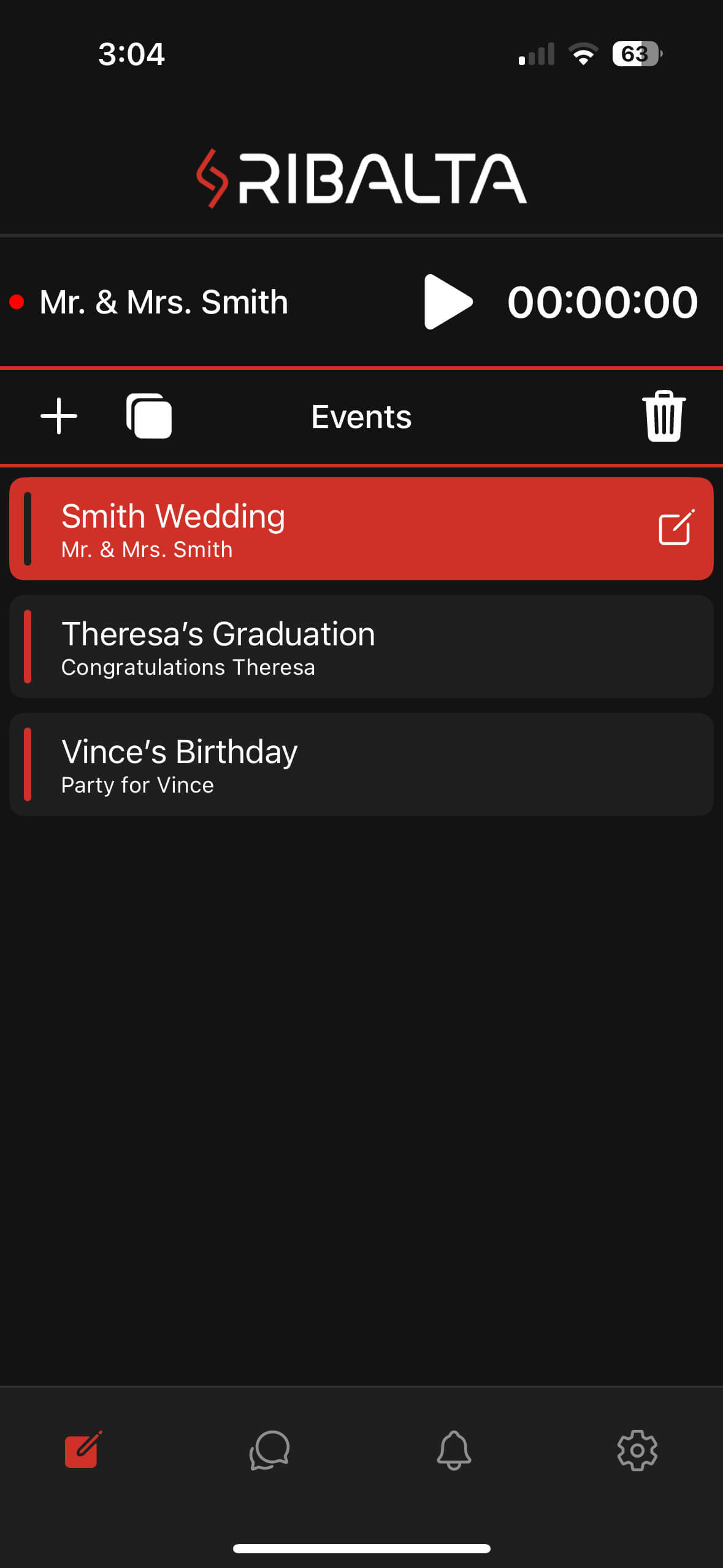
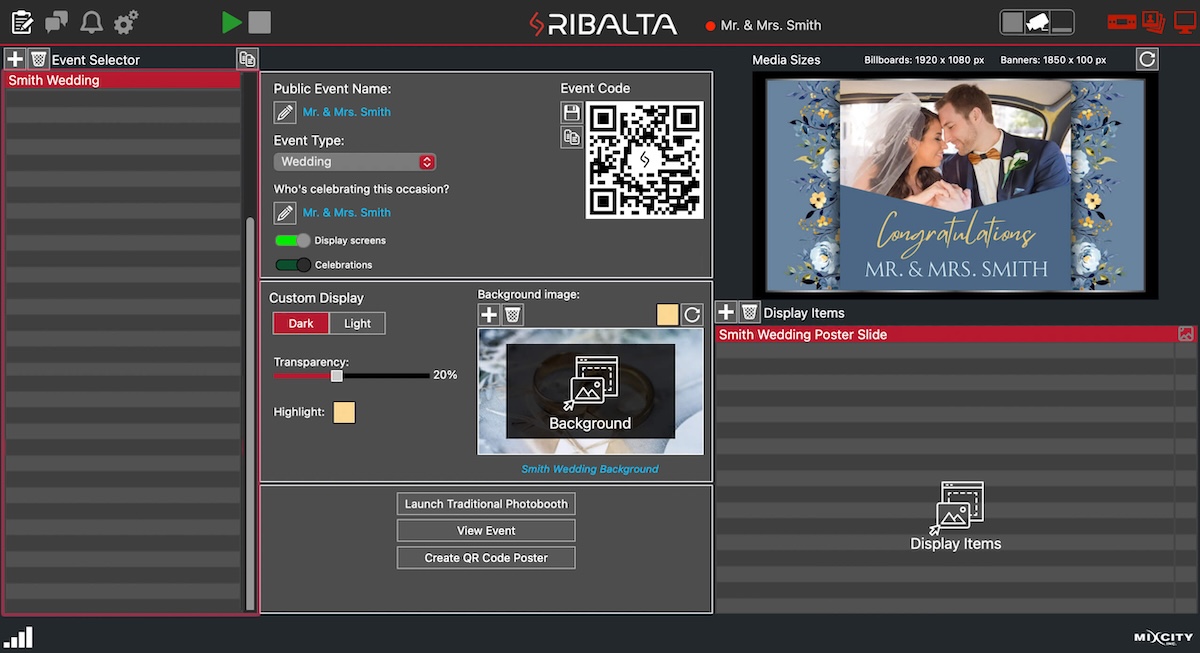
• Create, select and start your event. (Ribalta desktop version required to display a
media wall)
Manage
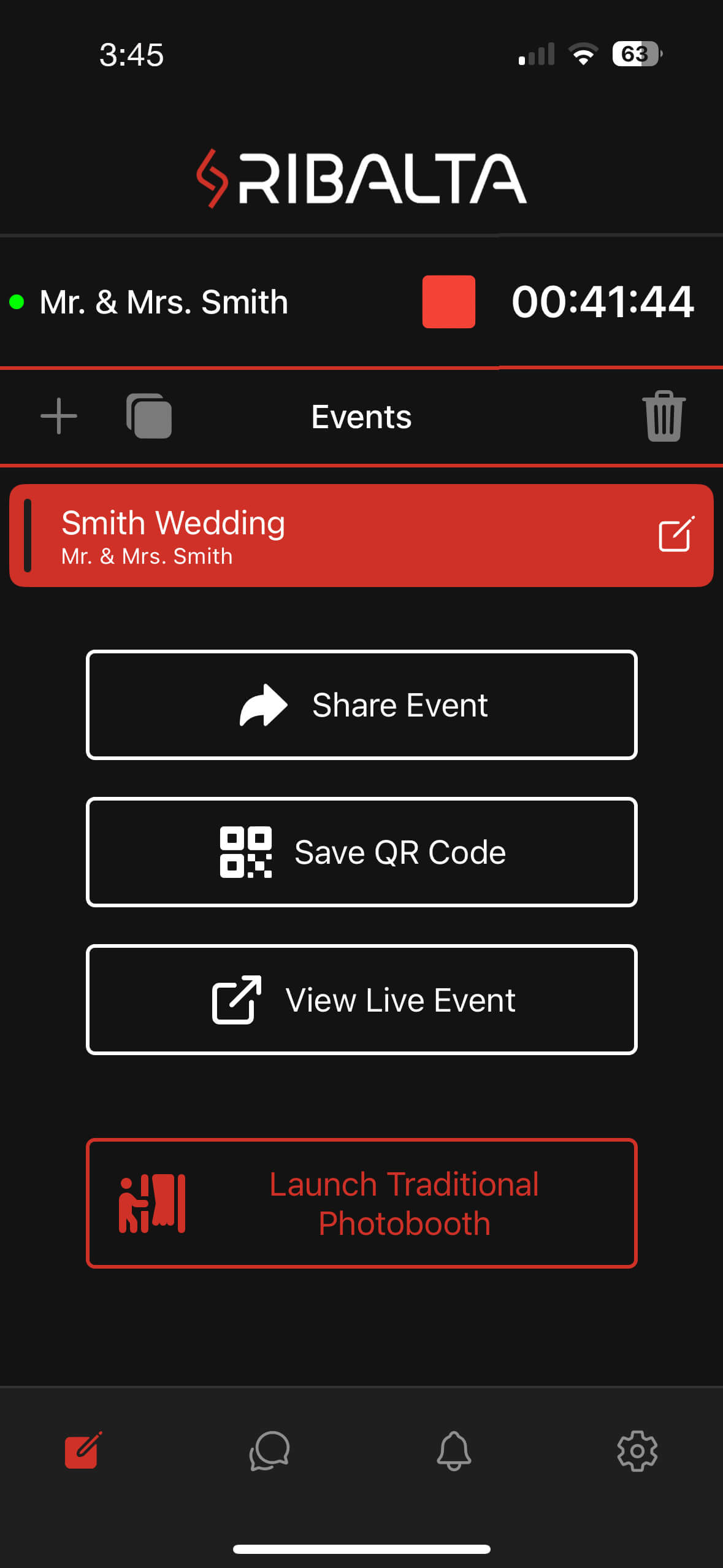
• Click the link to view your event. To share the event with your guests or to print
and display the QR code at your event venue.
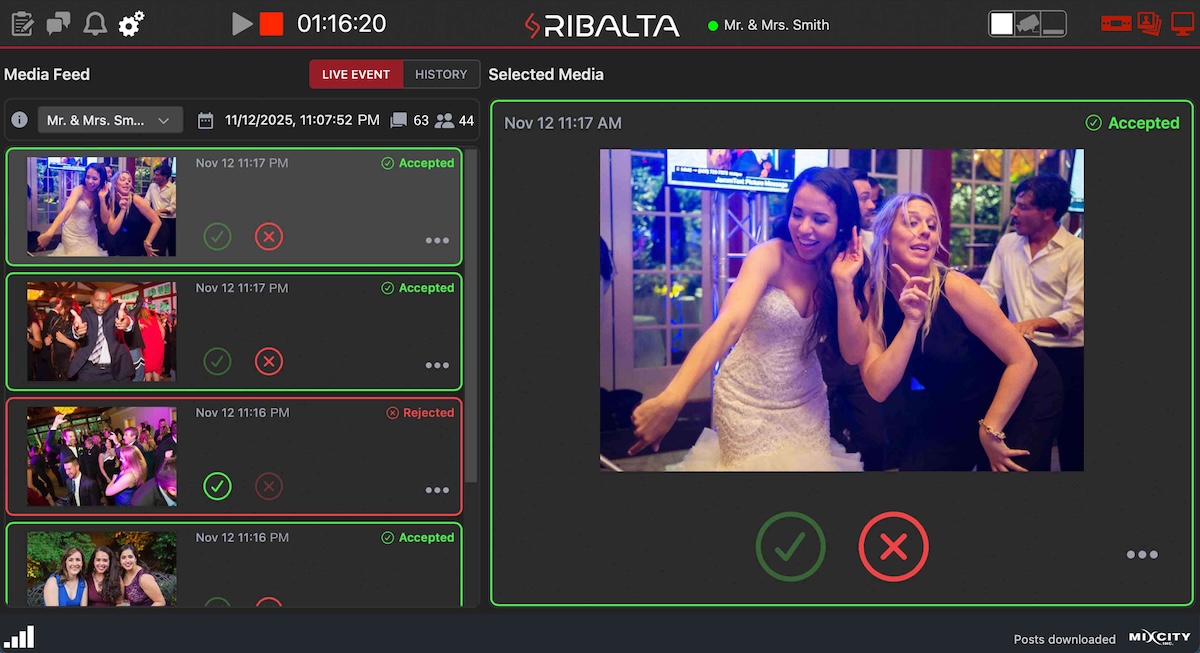
Approval
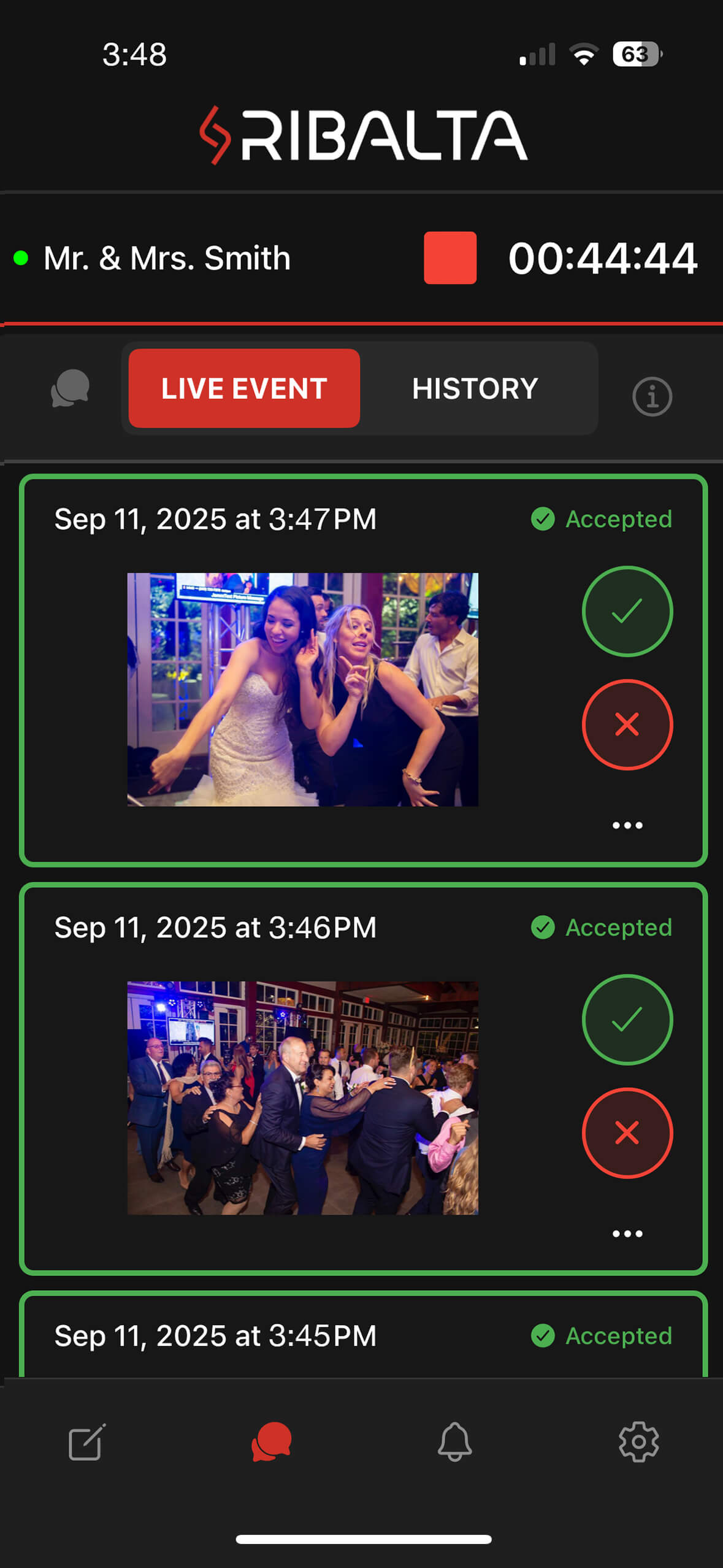
• Approve pictures to be seen in your shared photo gallery & on the Ribalta media
wall. Ribalta is cloud based, you can use any app to filter photos.
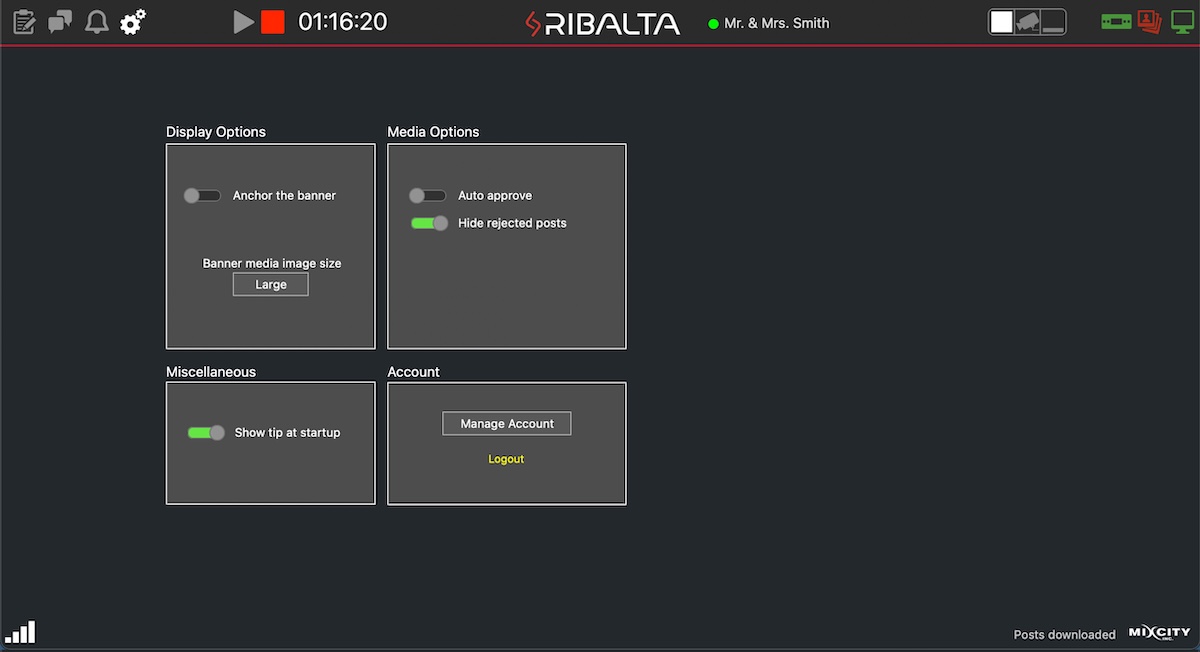
Settings
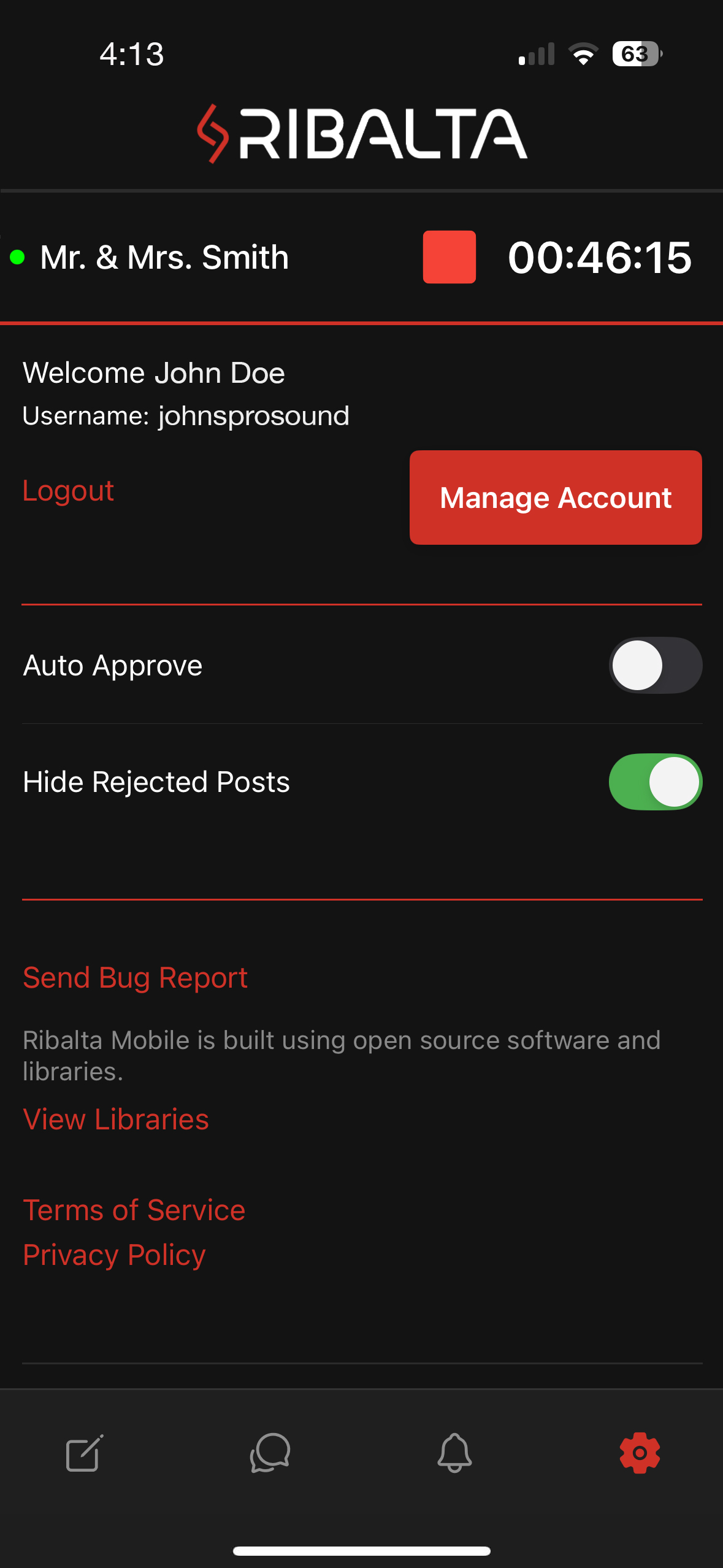
• Use “Manual filter” If you want to filter all incoming photos before they appear
in the gallery or on the Media Wall..
Ribalta Hosting App for Mac & Windows
Events
• Create and start your event. Scan the QR Code to view your event. Share the event
link with your guests or Print and display the QR code at your venue. The Media Wall will display the QR code automatically.
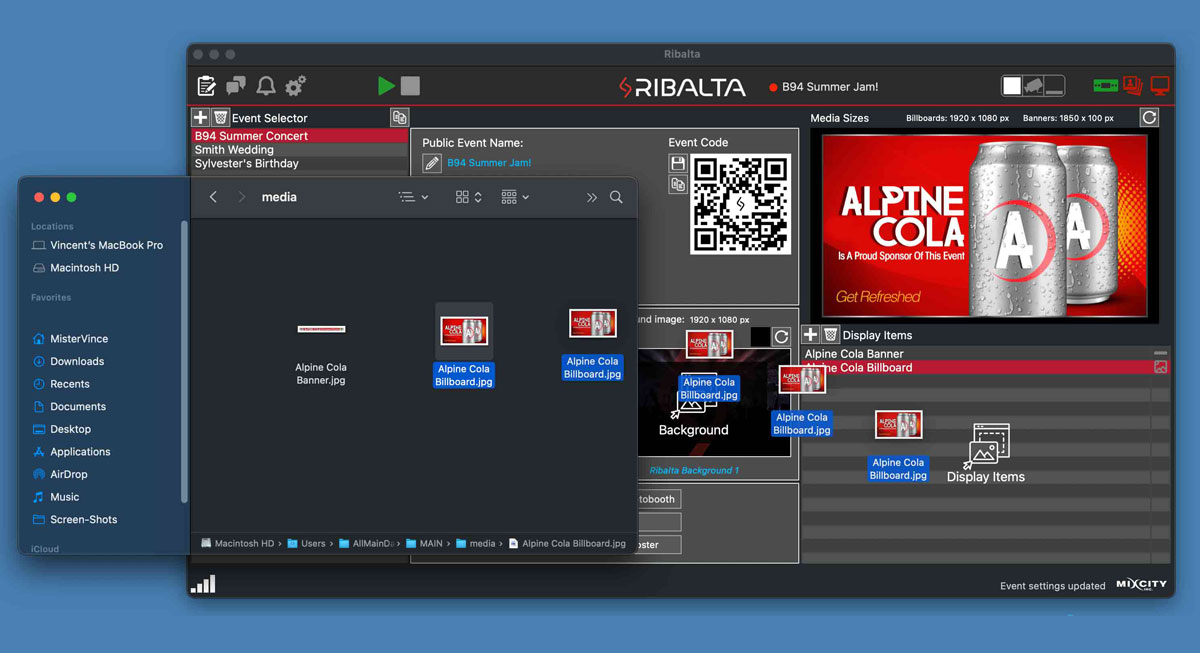
Drag and Drop
• Customize the media wall. You can select light or dark mode, change the highlight color
& add your own billboard images or video to enhance the look of your event.
Approval
• Approve pictures to be seen in your shared photo gallery and on the optional
Ribalta Media
Wall.
Settings
• Use “Manual filter” If you want to filter all incoming photos before they appear
in the gallery or on the Media Wall.